Hardware for Local AI: How Much VRAM You Actually Need
Where the model lives, how much memory to feed it, and what to do when there isn't enough
What hardware runs local AI models: the one factor that matters is your graphics card's video memory (VRAM), RAM as backup, Apple Silicon with unified memory. Ballpark figures for 7B, 13B and 70B, plus a rescue plan for a weak machine.
What VRAM is and why it decides everything
A local model is a big fat file full of brains. Before it can start thinking, the whole thing has to be lifted into fast memory. That’s the entire trick.
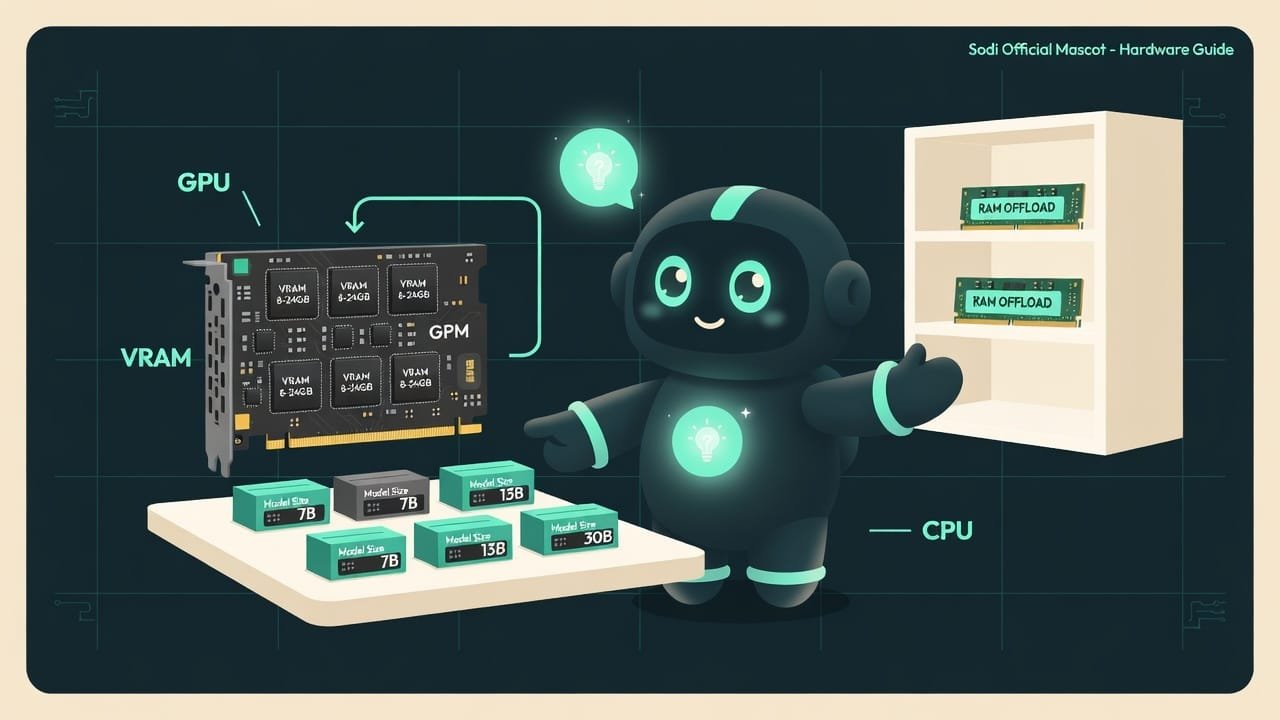
Picture this: you’ve hired a chef. The chef only cooks fast when every ingredient is laid out right there on the counter. The counter is your graphics card’s memory. But what if half the supplies are in a pantry on another floor? Every dish turns into a back-and-forth marathon. Cooking grinds to a halt.
So the main counter for AI is your graphics card and its own memory, VRAM. Not the processor. Not the core count. Not the clock speed. Just how many gigabytes fit on the graphics card. Rule number one. Lock it in, and half your hardware questions answer themselves.
Why understand hardware before running a model
So you don’t throw money away and don’t get disappointed before you’ve even started. The story is painfully familiar: someone downloads the biggest, smartest model, hits run - and the computer either freezes or spits out one word a minute. The takeaway becomes “local AI is slow and broken.” That takeaway is wrong. The model just didn’t fit on the counter.
- You’ll understand which model your machine can actually handle before you download gigabytes.
- You’ll stop blaming a “weak computer” when all you needed was a smaller model.
- You’ll choose with intent: this one I’ll run instantly, that one isn’t for my hardware.
- When it’s time to buy hardware, you’ll look at the right number (VRAM size), not the marketing.
Nine out of ten complaints that “the local model is unbearably slow” are a model that didn’t fit into VRAM and half-spilled into RAM. Sort out the memory and the problem becomes visible and fixable.
Three kinds of memory for AI: VRAM, RAM and CPU
A computer has several places where a model can “live.” And in terms of speed, they differ like a racetrack from a dirt road.
VRAM - graphics card memory, the main counter
VRAM VRAM (video RAM) is the graphics card's own memory, separate from regular RAM. It's the fastest for AI. Its size in gigabytes is exactly what determines which model you can run comfortably. is that super-fast memory sitting right on the graphics card. A graphics card can crunch thousands of things at once, which is why models run on it rather than on the processor. But its counter isn’t infinitely stretchy: you might have 8, 12, 16 or 24 gigabytes. Exactly how much is what decides almost everything.
RAM - regular memory, the bench player
RAM RAM (random-access memory) is your computer's regular memory - the kind you have 8, 16 or 32 GB of. For AI it's slower than VRAM, but you can offload part of a model into it when the card runs out of room. works too - but for tasks like this it’s noticeably slower. Model doesn’t fit into VRAM? The software dumps the “leftover tail” into RAM - this is called offload. The model will run. The speed just tanks: the graphics card has to keep trotting off to the pantry for each little piece.
Processor (CPU) - the last resort
You can run a model without a graphics card at all, on just the processor and RAM. It’ll work. But slowly - good only for poking at a really tiny model. This is plan B, not the main road.
How much VRAM you need for 7B, 13B and 70B
Model size is measured in billions of parameters - that’s the B in names like 7B, 13B, 70B (B for billion). Roughly: more parameters means a smarter model and more memory to feed it.
Here’s a ballpark for the compressed (quantized) form - which is how models are usually run locally. The numbers are approximate, give or take, no pretense of laboratory precision: actual appetite also depends on context length (how much text the model holds in its head at once).
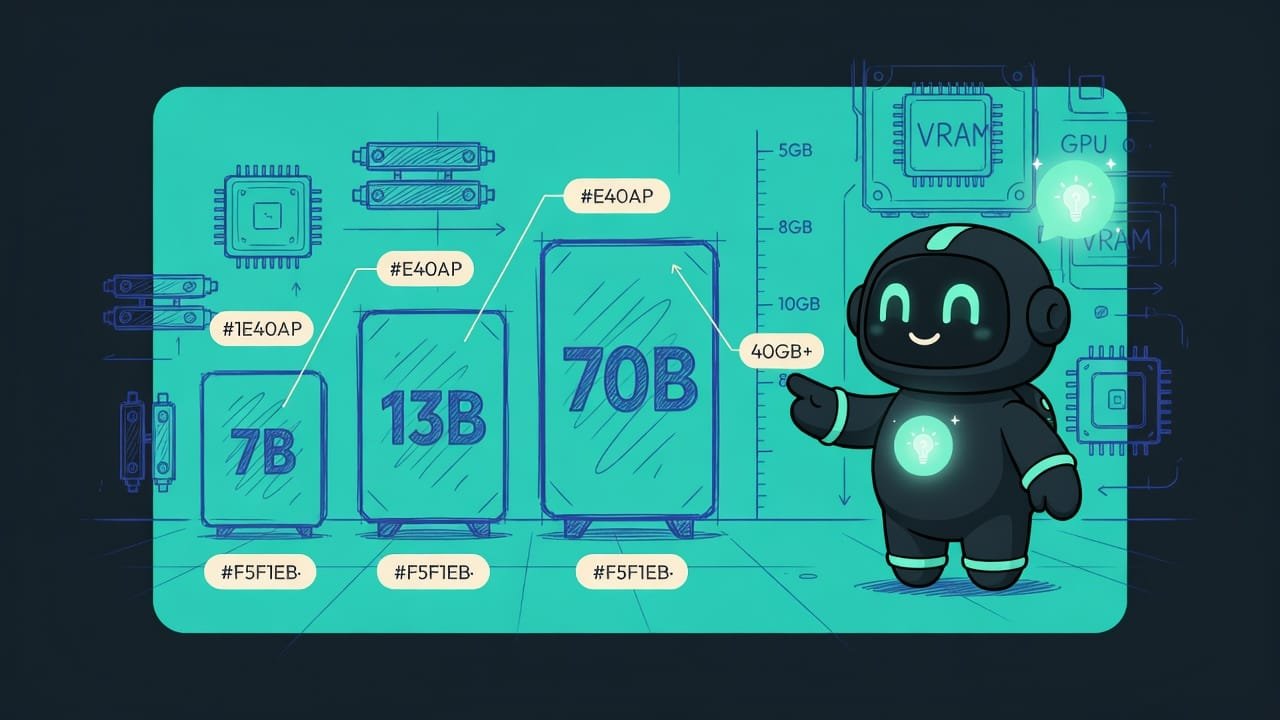
7B / 8B (small, nimble) - about 5-6 GB of VRAM. Fits even on a modest 8 GB graphics card.
13B (medium, a bit smarter) - about 8-10 GB. Comfortable on a 12-16 GB card.
70B (large, genuinely smart) - about 40 GB and up. That’s a professional card, two graphics cards, or a Mac with lots of memory.
Apple Silicon and unified memory: why Mac comes out ahead
Got a Mac with an M-series chip (M1, M2, M3, M4 and onward)? Then the story is different - and largely a happy one for AI. These chips have unified memory: the processor and the built-in graphics share one common pool instead of fighting over separate chunks.
Apple Silicon Apple Silicon is Apple's M-series chips (M1, M2, M3, M4 and beyond). Their thing is unified memory: the processor and graphics use one pool, so the graphics get plenty of memory without a separate graphics card. with unified memory means this: however much RAM your Mac has, nearly that much is available to the model. A Mac with 32-64 GB runs things that on a regular PC would cost you a tidy sum for a graphics card with lots of VRAM.
- Unified memory: the graphics get plenty, no separate graphics card needed.
- Quiet, cool, energy-efficient - you can run a model right on the laptop.
- A Mac with 32-64 GB handles large models out of reach for a mid-range gaming card.
- Memory is soldered in for good: whatever you bought is what you've got, you can't add more.
- Raw speed on heavy models is usually lower than a top-tier gaming card, but you get more memory.
- When picking a Mac for AI, the main thing is more memory, not the fanciest processor.
How to run local AI on a weak computer
Old laptop, integrated graphics, a 4-6 GB card? No reason to give up. Local AI isn’t “top hardware or nothing.” There are two levers that pull almost everyone through.
Lever 1. Grab a smaller model
The most obvious and the most effective. A small model (like 7B/8B, and there are tiny ones at 1-3B) fits almost anywhere. Yes, it’s dumber than a big one. But for plenty of tasks - summarizing, simple questions, drafts, coding help - it’s more than enough. A nimble small model beats a huge one that’s wheezing or won’t even start.
Lever 2. Quantization - compressing the model
Quantization Quantization is compressing a model: the numbers inside it are stored more coarsely (say, 4 bits instead of 16). The model takes up roughly four times less memory and runs faster, while quality drops only a hair. is when the numbers inside the model are stored less precisely, more coarsely. Sounds scary, but in practice it’s almost magic: the model takes up roughly four times less memory and answers nearly as well. That’s why a 7B model fits not in 14-16 GB but in a modest 5-6 GB.
And here’s the nice part: you don’t have to compress anything by hand. The ready-made apps for running local models already offer compressed versions to choose from - just grab the one marked as 4-bit (the name often sports something like Q4) and you’re set.

Common beginner mistakes when choosing hardware
- Chasing the biggest model. A 70B won’t run in any usable way on an 8 GB card. Match the model size to your memory.
- Looking at the processor instead of the graphics card. For AI, VRAM is what matters, not CPU core count. A killer processor without a good graphics card won’t save the model.
- Picking a model that fits VRAM right to the edge. Forget about context and you run out of memory mid-conversation. Always leave headroom.
- Downloading an uncompressed model “to make it better.” On a weak machine that’s a direct path to a freeze. Grab the quantized version - for a beginner the quality difference is barely noticeable.
- Thinking nothing works without an expensive graphics card. A small compressed model runs even on modest hardware and on a Mac with unified memory.
- Blaming a “sluggish computer.” Most of the time it’s not the computer that’s slow but a model too big to fit, spilled out of VRAM into RAM.
TL;DR - если коротко
- The star of the show is your graphics card and its VRAM. Fits the whole model? It flies. Doesn't fit? It crawls.
- Ballpark in compressed 4-bit form: 7B/8B - 5-6 GB, 13B - 8-10 GB, 70B - 40 GB and up.
- RAM is the bench player. You can spill the tail of the model into it, but speed drops several times over.
- Apple Silicon (M chips) is a trump card: the memory is shared, so a Mac with 32-64 GB does what a PC would need a pricey card for.
- Quantization shrinks a model fourfold with almost no loss of smarts. Your best friend on weak hardware.
- A weak machine isn't a dead end: grab a small model in compressed form and tinker locally with no stress.