Connecting a local model to an agent: base URL and key
One address, any key - and your editor starts thinking right there on your machine
A local model serves an OpenAI-compatible address on localhost. Here's how to wire it into your editor, an extension, and your own script using a base URL and a dummy key.
What it means to connect a local model to an agent
Your model is already up and running. So far it’s useless. On its own it’s like a phone with no SIM card: smart, but silent and talking to nobody. For your code editor, an extension, or your own script to start calling it, you need a number. That phone number is the address of your local server.
Now for the nice part. Almost every local server pretends to be the OpenAI cloud. They speak the same request language as the big paid API. So any program that “speaks OpenAI” can be politely fooled: feed it your home address instead of the cloud one. And it won’t even notice the swap.
Why connect a model locally
You can stay in the cloud and pay for every token. That’s the familiar way. But the moment you want privacy, zero cost, and offline work - it turns out all of that is already sitting in your house. You just have to plug it in.
- Your code and your conversations don’t leave for someone else’s servers. Everything runs locally, on your machine.
- You pay zero for tokens: the model eats electricity, not money off your card.
- No more “you’ve hit your quota” in the middle of the workday.
- Catch the “address plus key” pattern once, and you can plug your model in anywhere: into an editor, an extension, your own script.
Nine out of ten connection problems aren’t “the model broke.” They’re a typo in the address or a forgotten little tail at the end. Understand the structure of the address, and these problems become transparent.
How the local server address and key work
When you start a local server, it begins listening on a single address on your computer. That address is built from three pieces. Let’s take them one at a time.
localhost means “this very computer”
localhost localhost is a special name that always means “this very computer I'm on right now.” Requests to it never go out to the internet - they stay inside the machine. Its numeric twin is 127.0.0.1. means “call yourself.” A request to this address doesn’t go outside. It runs inside your machine, not a single byte to the internet. That’s why it’s fast. That’s why it’s private.
The port is the door number on the computer
A computer has many doors, and the server takes one. The port A port is the number of the “door” on a computer through which a program receives requests. Localhost is the building, the port is the specific door inside it. Different local servers default to different ports. is that door number. Different servers default to different doors. So two tools run side by side at the same time without getting in each other’s way.
The “v1” tail means “talk to me like I’m OpenAI”
The “v1” tail at the end of the address is a polite way of saying “let’s use the OpenAI protocol.” It’s exactly what flips on OpenAI-compatible mode OpenAI-compatible mode is when a local server accepts requests in the same format as OpenAI's cloud API. The program doesn't care who's on the other end: it sends its usual request and gets its usual response. . Most servers hand you such an address out of the box - nothing to tweak.
Why you can just make up the key
In the cloud, the API key is your pass - it’s how they charge you. A local server has no one to charge, so the key is basically irrelevant to it. But the key field in programs is usually required; you can’t leave it empty. The fix is childishly simple: type in any dummy string. “local” works, “salmon” works. The server ignores it, and the program is happy.
- Your own scripts in any language - you change the address and the key, the rest of the code stays the same.
- Editor extensions that have a “custom OpenAI address” field.
- Local agents and CLI tools built around the OpenAI protocol.
- Cloud editors that reach the model through their own server - they can't see localhost on your machine.
- Tools with no field for a custom address - there's simply no way to swap it in.
- Cases where you need outside access - then you'll need a tunnel to the outside world, and that's a separate story.
Example: connecting a model to a script in three steps
Let’s take the most common scenario - your own little script. It’s the easiest place to see the whole mechanism at once, with no extra layers.
- Start your model’s local server and look at its address. It’s usually localhost, a colon, the port number, and a v1 tail. The server will print the exact port numbers itself when it starts.
- Grab the official OpenAI library for your language - the same one you’d use for the cloud. No need to change it; it’s universal.
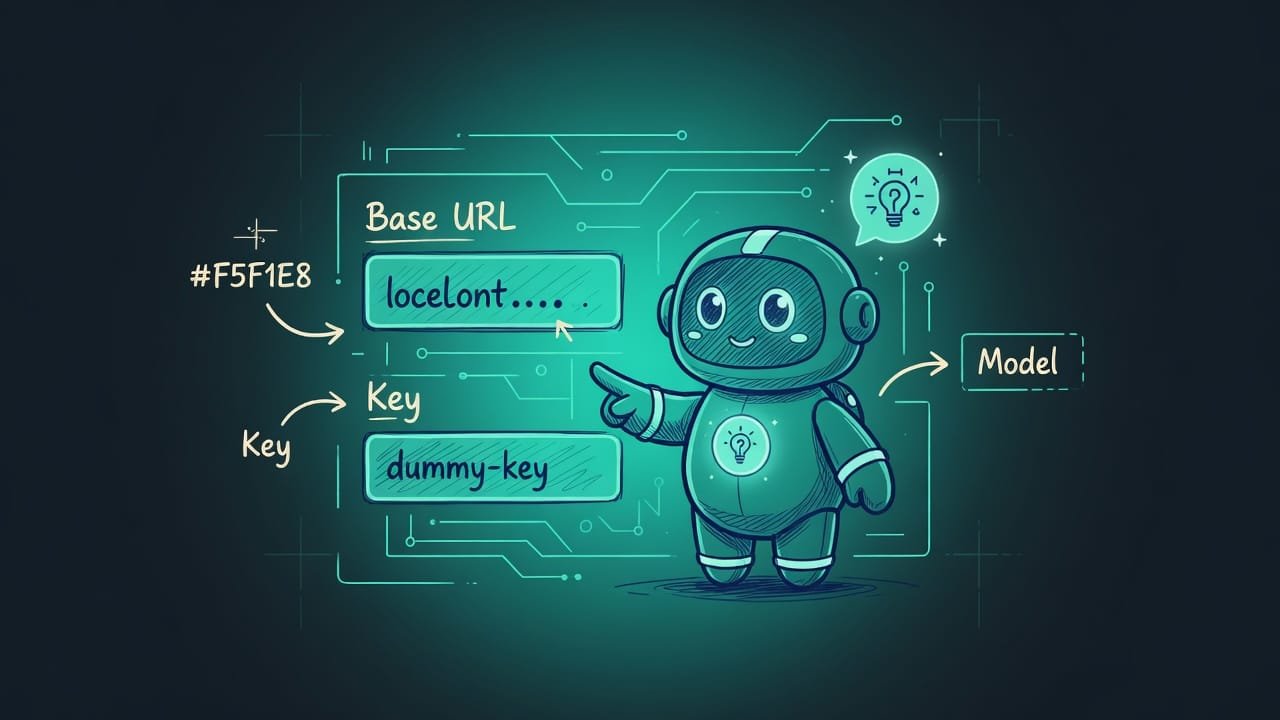
- When you create the client, fill in two fields: base URL - your server’s address with the v1 tail, and api key - any dummy string like local. After that, write your request as usual: the name of your model and the text of your question.
In an editor with an extension, it’s exactly the same. You find a field in the settings like “Base URL” or “custom OpenAI address,” paste in the server address, put a dummy in the key field, and pick the name of your local model from the model list. The logic is the same everywhere: where to call and with which key.
Common mistakes when connecting a local model
- Forgetting or doubling the “v1” tail. The number one classic. The program adds the tail itself, and you typed it in again - the address breaks and everything falls over. Not working? First thing, look at the very end of the address.
- Mixing up the port. You set up two servers and typed in the wrong door - and you get silence in return. Check against what the server printed at startup. Not against your memory.
- Leaving the key field empty. The server doesn’t need a key, but the field is often required. Empty - and the program complains. Type in any dummy, and you’re good.
- Not starting the server itself. The connection is set up perfectly, yet the model is silent - simply because the server is off. Start it first, then check the model list.
- Expecting miracles from a cloud editor. It reaches the model through its own servers - it won’t see localhost. That’s not a mistake in your settings, it’s just how that kind of tool is built.
- Typing a model name from guesswork. The program needs exactly the name the server knows the model by. Open the model list and copy it from there. Don’t make it up.
TL;DR - если коротко
- A local server pretends to be the cloud: it serves an address on localhost that speaks the same request language as OpenAI.
- The wiring is almost always the same: base URL plus any dummy key. No real key required.
- The address usually ends in “v1”. That’s the signal that says “talk to me like I’m OpenAI”.
- Your own script connects with the same official OpenAI library: change two fields, and off you go.
- The big trap is a missing or doubled “v1” and cloud editors that can’t reach localhost.
- Free, private, no limits. The one catch: it thinks on your hardware - you get out what you put in.