LM Studio: local LLMs without the terminal, all point-and-click
A local neural network where you never type a single command
LM Studio - a GUI for local LLMs: search and download models from Hugging Face, chat just like ChatGPT, and run a local server with an OpenAI-compatible API. No terminal.
What LM Studio is, in plain words
Last time we ran a model by hand - through the terminal, with commands, feeling a little like a hacker in a movie. Some people love that. Others take one look at the black window with a blinking cursor and want to close the laptop and go make tea.
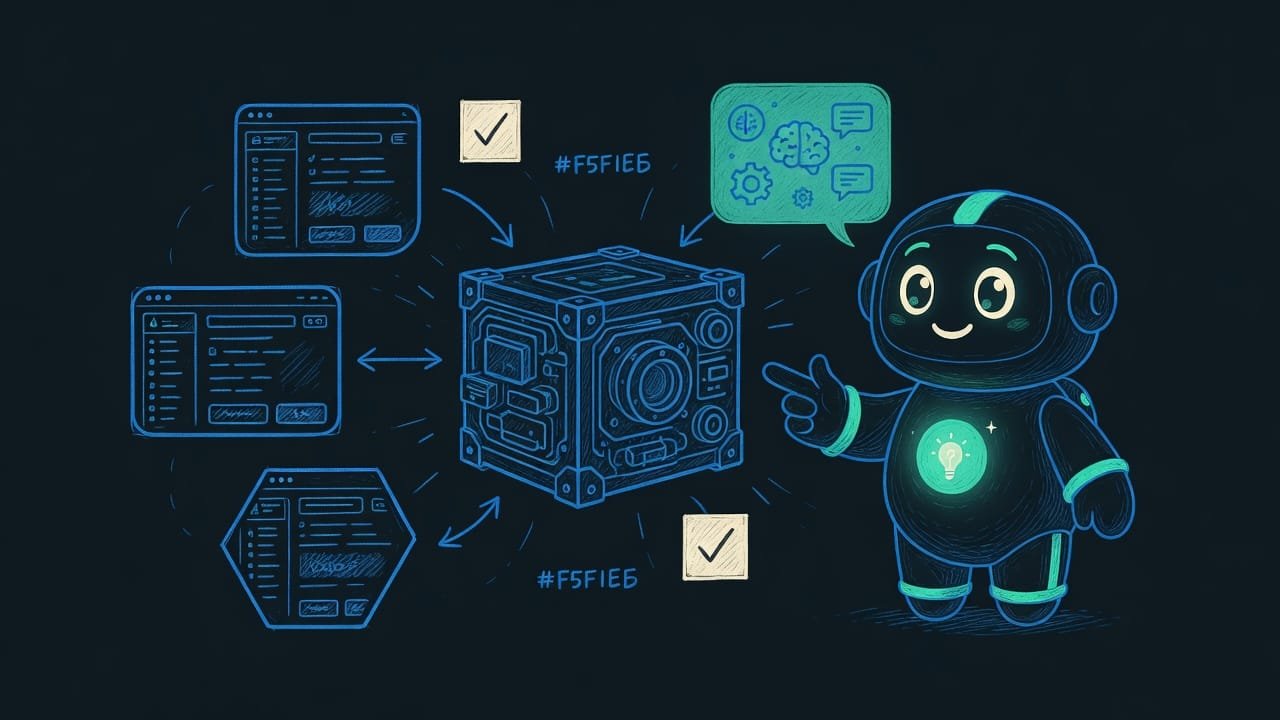
So here is the thing: the terminal is not required. Not at all. There are programs with ordinary buttons, windows, and a search box - just like any other app on your computer. The best known is LM Studio. Think of it as the App Store for local models: you open it, find a model in the catalog, hit Download, open the chat - and start typing. All point-and-click. Not a single command.
Why a beginner needs a GUI, and who it is for
The terminal scares off half of all newcomers. And that is a shame - because of it, people give up on the idea of running AI at home entirely. A GUI removes the barrier: you can see what is happening right away, and you will not break everything with a typo in a single command.
- No commands to remember. What you did with text in the terminal, you do here with a button.
- You can see whether the model fits. The program tells you up front how much memory the model wants, and highlights the options that will actually work. You will not waste a download on something that cannot run.
- Chat out of the box. Just want to chat? The window is already there, nothing to configure.
- One button - and you are your own OpenAI. You spin up a local server and connect your own programs and agents to it instead of a paid cloud.
Nine out of ten “I could not run AI locally” cases are not about a weak computer. They are about the fear of the black window. A GUI removes the fear. After that, all that is left is picking a model that suits your hardware - and that is what we will do.
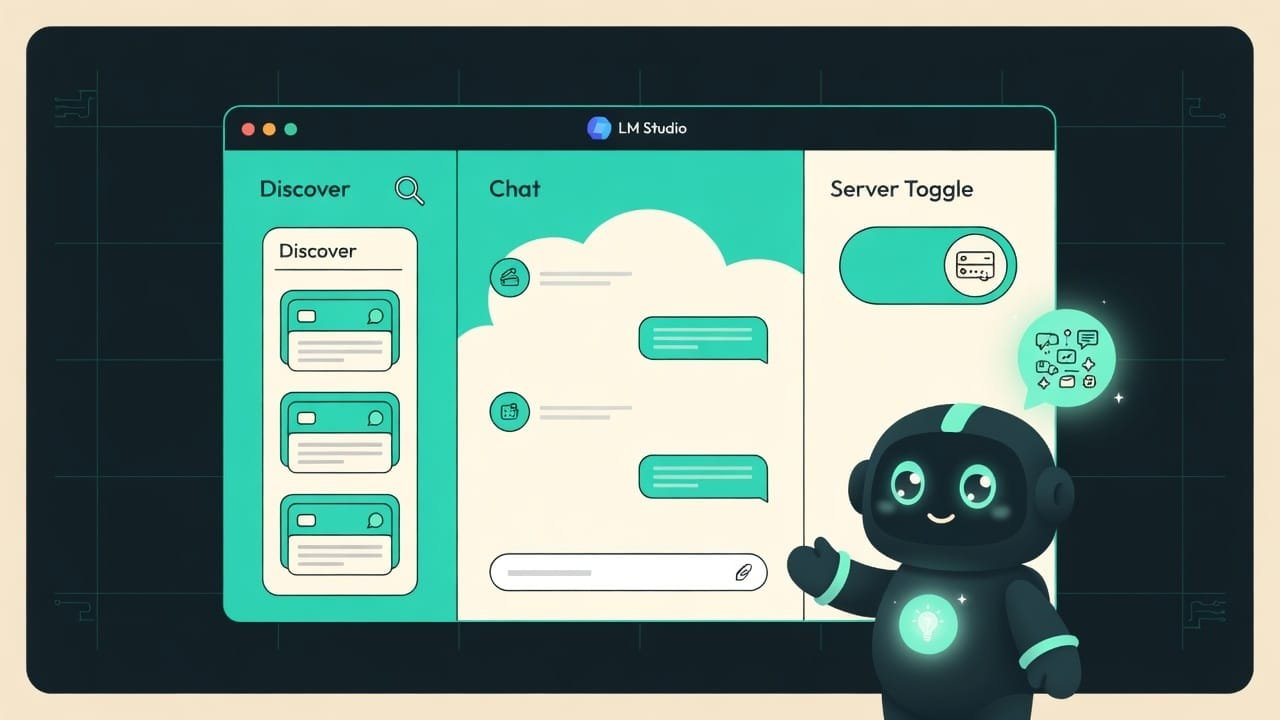
How LM Studio works: three pillars
Everything inside the program rests on three things. Get a handle on these, and the rest is intuitive.
Discover - the built-in model catalog
The Discover Discover is the catalog tab in LM Studio. Essentially a built-in search over Hugging Face: you type a model name, the program shows the matching files, and lets you download them in one click. tab (the magnifying-glass icon) is a built-in model store. Under the hood it searches Hugging Face Hugging Face is the largest open catalog of AI models on the internet. Most local models live right there, and LM Studio downloads them straight from it. , the world’s biggest warehouse of open models. Type a name - get a list of options and a Download button.
Here is the killer feature: before you download, the program honestly shows you how much RAM and video memory the model will ask for, and highlights whether your computer can handle it. This saves you from the classic disaster - downloading a mountain of gigabytes only to find it will not run.
The chat window - ChatGPT, but at home and offline
You download a model, open the chat tab, pick it at the top, and start typing. It looks exactly like the ChatGPT you are used to: an input field, conversation history, replies. Except all of it runs on your own computer and works offline - you could do it on a plane, with no internet.
Bonus: in many such programs you can attach a document to the chat - a PDF, text, a spreadsheet - and ask questions about it. The model reads it and answers without sending anything to the cloud. People who do not want their work files leaking out especially love this.
The local server - you are your own OpenAI
Now this is the most powerful and the most underrated part. LM Studio has a separate tab with a Start server toggle. Flip it, and the program spins up a local API An API is a way for one program to talk to another by a set of rules. An OpenAI-compatible API means your local model answers by the same rules as ChatGPT, so other programs understand it right away. on your computer that pretends to be OpenAI.
It sounds fancy, but it is simple when you break it down. Tons of programs and AI agents know how to work with ChatGPT - inside them is the address where they send requests. You swap that address for your local one. The program does not even notice the difference. Only now your free home model answers, not a paid cloud.
Before: the program sends requests to OpenAI’s server on the internet, you pay for every request, and your data leaves the building.
After: the program sends requests to a local address like localhost with the port LM Studio shows you, and your model on your computer answers - free and offline.
You change essentially one line - the server address. Everything else the program does just like before.
LM Studio alternatives: Jan, Ollama, and who else
LM Studio is popular, but not unique. They all share one principle - a convenient wrapper around the engine. What differs is the personality.
- It matters to you to see buttons rather than type commands.
- You want to search and download models with the mouse, seeing the memory requirements right away.
- You need a ready-made chat and document attachments with no setup.
- Jan - nearly the same thing, but fully open source, if that is a plus for you.
- You live in the terminal, and commands are faster for you than the mouse.
- You need lightweight automation and launching from scripts.
- Ollama - the darling of people who want minimalism and commands, not windows.
- You want to put a model on a remote server with no graphics at all.
How to run a local model: the path from install to server
The path is short. And almost all of it is by mouse.
- Go to the official LM Studio site and download the build for your system (Windows, macOS on Apple Silicon, or Linux). Install it like any normal program.
- Open it. Go to the Discover tab (the magnifying-glass icon) - that is the model catalog.
- Type the name of a beginner-friendly model into the search - a small instruct model. Watch the memory hint: pick the one tagged as a fit for your computer.
- Hit Download and wait for it to finish. The size can range from a couple of gigabytes to dozens, so be patient your first time.
- Go to the chat, pick the downloaded model at the top, and write your first message. Congratulations - that is your personal offline AI.
- When you want to connect your own programs: open the server tab and flip the start toggle. The program will show a local address and port - that is your OpenAI-compatible endpoint.
Common mistakes when running a local model
- Downloading the program and waiting for a miracle. A GUI with no model is an empty remote. After installing, be sure to go into Discover and download at least one model.
- Grabbing the biggest model so it is smarter. It will not fit in memory - it will crawl or simply will not start. Go by the requirements hint, not by which size is bigger.
- Ignoring the quantization variants. The same file comes in different weights. Do not grab the heaviest one at the start - begin with medium compression.
- Thinking everyone needs the local server right away. Just want to chat? The chat is enough. The server is for connecting other programs and agents, and you will get to it later.
- Forgetting to flip the server toggle. When the program does not answer your request, it is not broken. The server is just off. Make sure it is running.
- Downloading models from anywhere. The catalog inside the program is the trusted route through Hugging Face. Do not drag random files in from shady places.
TL;DR - если коротко
- LM Studio is the App Store for local models: you install it like any normal program, then do everything with the mouse. Zero commands.
- The Discover tab is a built-in search over Hugging Face. Before you even download, you can see whether a model fits in your memory or not.
- The chat is a dead ringer for ChatGPT. Except the model runs on your own computer and works offline - even on a plane.
- The local server button spins up an API on localhost that is OpenAI-compatible. Any program built for ChatGPT will happily pick up your model.
- Alternatives: Jan (fully open source), Ollama (for terminal lovers). Same idea - a wrapper around the engine.
- It is not a model, it is a remote control. Downloading the GUI is only half the job. Next you pick a model that suits your hardware.