LoRA in ComfyUI: Styles and Characters Without Training a Model
A tiny file that teaches a huge model to draw exactly what you need
LoRA in ComfyUI in plain words: how to wire up the Load LoRA node, what strength to set, what trigger words are, where to download LoRA on Civitai, and how to stack several of them.
What LoRA Is, in Plain Words
The big model - the one that generates pictures - is a huge all-purpose artist. It draws pretty much everything, but nothing specific. It doesn’t know your favorite anime character. It can’t do “1950s watercolor.” And it definitely won’t draw your cat in particular.
Teaching it all that from scratch means months of work and a graphics card the size of a fridge. Who needs that? Luckily, there’s a simpler trick.
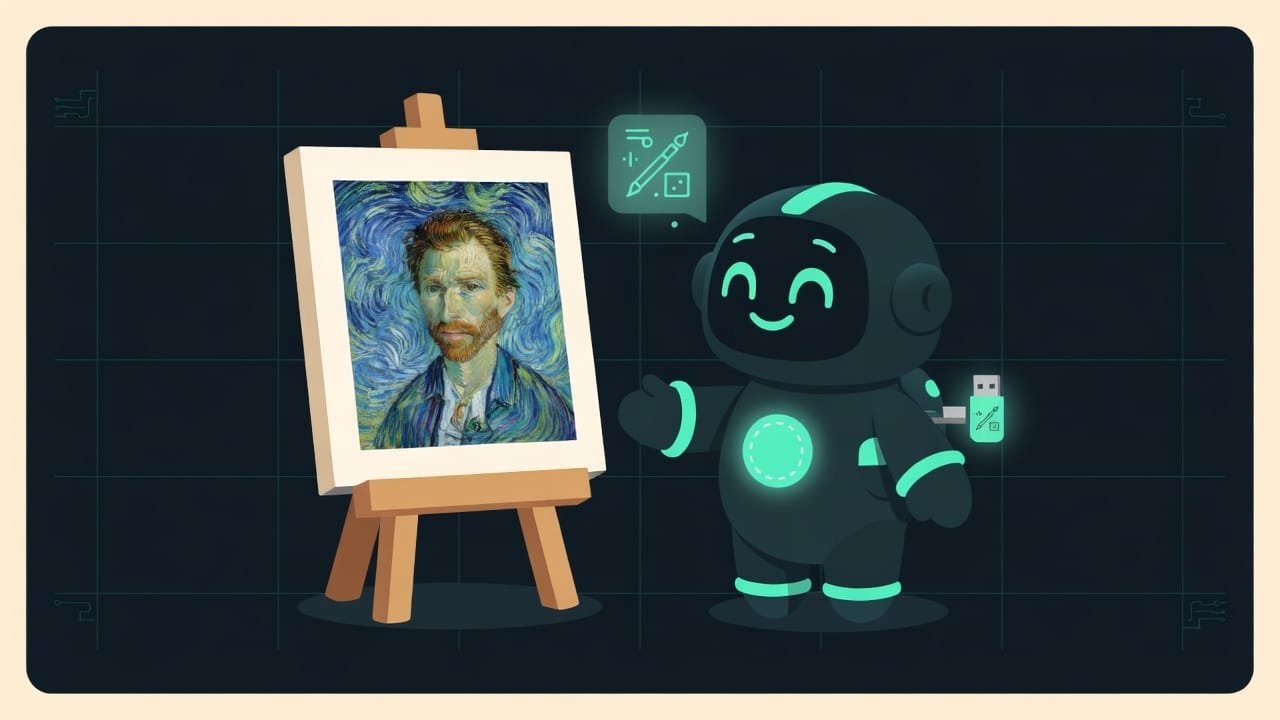
LoRA LoRA (Low-Rank Adaptation) is a tiny add-on file for a big model. It holds not the whole picture of the world, but just a 'patch': one style, one character, or one object. It weighs megabytes, not gigabytes. is like a tiny USB stick you slip into the artist’s pocket. The stick has just one thing on it: a style, a character, a type. Same artist, same brushes. But now they draw exactly what the stick taught them.
Why You Actually Want LoRA
Without LoRA you get an “average of everything” picture. Pretty, but faceless. With LoRA you get exactly what you wanted - without knowing how to draw or how to train a neural network. Not a bad deal, you have to admit.
- Want a recognizable style - a cyberpunk poster, an ink drawing, pixel art? There’s a LoRA for that.
- Want the same character across ten pictures in a row? There’s a character LoRA.
- Want your own product or your own face in the shot? Also LoRA (training your own gets its own chapter).
- And all of it is free and takes a minute: download the file, hook up the node, generate.
The big model answers the question “what should I even draw.” LoRA answers “in WHAT form.” That’s the other half of the win.
The Load LoRA Node: How It Works in ComfyUI
In ComfyUI, the Load LoRA node handles all of this (in some builds it’s called LoraLoader). The idea is laughably simple: it sits as an adapter between the model and the sampler.
Remember the diagram from earlier lessons - model, text encoder, sampler? LoRA wedges in right after the model. The node has two inputs (model and clip) and two outputs with the same names. You just cut the wire and splice it in. That’s it.
LoRA Strength: strength_model and strength_clip
The node has two volume sliders:
- strength_model - how hard the LoRA pushes on the picture itself: shapes, colors, style.
- strength_clip - how strongly it affects how your prompt is understood.
Trigger Words: The Code Word Without Which LoRA Stays Silent
The most common beginner trap. Many LoRA only fire if your prompt contains a special word - trigger words Trigger words are the code words a LoRA was trained on. Without them the model may not get what you want, and the LoRA will give a weak effect or none at all. . It’s like a password: you’ve plugged the stick in, but until you say the code word, it stays quiet.
Where do you get them? On the LoRA’s page on Civitai - the author almost always writes the triggers right in the description. Grab them and add them to your prompt, easy.
Where to Download LoRA: The Civitai Catalog
The main free warehouse for LoRA is Civitai Civitai is a large open catalog of models and LoRA for image generation. Thousands of free files with examples, reviews, and instructions. There's 18+ content, which you can filter out in the settings. . Think of it as an app store, but for styles and characters.
Before downloading, look at three things: the base model (it has to match yours), the reviews and example pictures, and the listed trigger words. Drop the downloaded file (usually with a safetensors extension) into the folder, refresh or restart ComfyUI - and the LoRA shows up in the node’s list.
- Go to civitai.com and pick the LoRA type in the filters.
- Set the base model - the same one you’re using.
- Open a LoRA you like, read the description, and write down the trigger words.
- Download the safetensors file.
- Put it in the ComfyUI, models, loras folder.
- In ComfyUI, hit Refresh or restart the program.
- Add a Load LoRA node, pick the file, set strength to 0.75.
- Type the trigger words into your prompt and generate.
How to Stack Several LoRA in One Generation
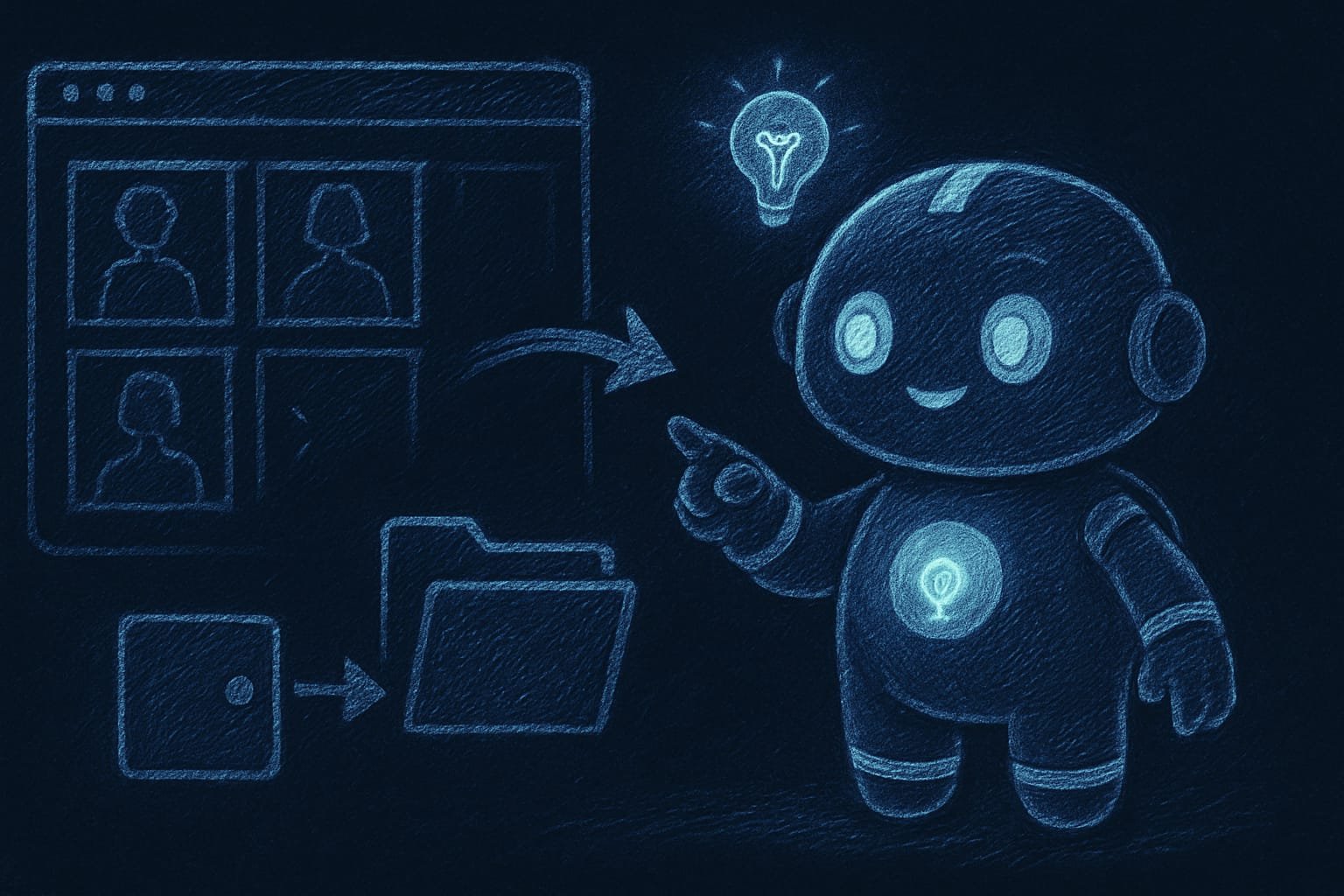
You can plug in more than one stick - several at once. For example, a “watercolor” style plus a specific character. You do it with a chain: feed the output of the first Load LoRA node into the input of the second, the second into the third, and so on down the list. The last one in the chain goes off to the sampler and text encoder.
- Change the style in seconds, no training, no beefy hardware.
- The same character across tons of pictures - consistently.
- Thousands of ready-made free options on Civitai.
- The file is tiny - easy to store and stack up.
- Without a trigger word and the right base model, it just won't work.
- Too much strength - an overexposed, “fried” picture.
- Several strong LoRA conflict with each other.
- The quality and safety of other people's files are on you.
Common LoRA Mistakes and How to Fix Them
- Forgot the trigger word. The number-one reason for “LoRA isn’t working.” Check the model’s page and type the code word into your prompt.
- Cranked the strength to max. 1.5 doesn’t mean “one and a half times cooler.” It means “let’s burn the picture.” Stick to 0.7-0.8.
- LoRA for the wrong base model. It’s like a charger for a different phone: the plug looks similar but won’t fit. Check compatibility on Civitai.
- Downloaded it but didn’t refresh ComfyUI. File’s in the folder but not in the node’s list? Hit Refresh or restart.
- Stacked five LoRA at full strength. They’ll brawl. When there are a lot of them, turn each down to 0.5-0.6.
- Put the file in the wrong folder. LoRA lives strictly in models, loras. Not models, checkpoints - that’s where the big models go.
TL;DR - если коротко
- LoRA is a tiny add-on to a big model. It teaches the model one style or one character without retraining everything from scratch.
- You plug it in with the Load LoRA node - it sits between the model and the sampler, like an adapter spliced into a wire.
- Strength is the volume of the effect. 0.7-0.8 is almost always spot on. Above 1.0 the picture gets fried.
- Trigger words are code words - without them the LoRA stays silent. The author lists them on the model's page.
- You grab free LoRA on Civitai and drop the file into the models / loras folder.
- Several LoRA get chained together. Turn each one's strength down - otherwise they fight.