HTML presentation in the browser: slides without PowerPoint
One file that opens anywhere and clicks through with arrow keys - and an agent builds it for you
How to make a presentation in the browser without PowerPoint or a designer: one HTML file, animations, arrow-key navigation, nothing breaks on the projector. Prompt included.
What browser slides are, in plain words
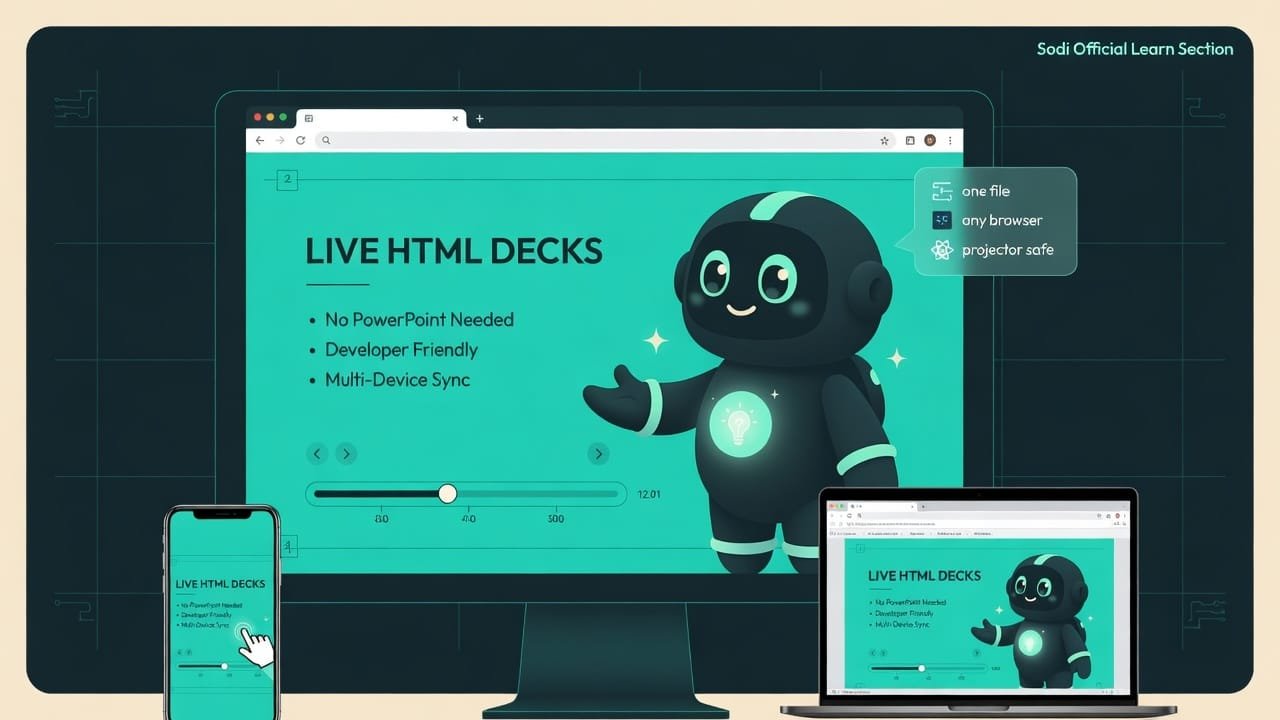
Forget the heavy PowerPoint file you still need some app to open. Picture a presentation as a regular web page. Double-click and it’s in your browser, just like any website. You move through it with arrow keys. Scroll with the wheel. On a phone you swipe with your finger. Images glide in, headlines appear with animation. And all of it is one file. One. Drop it in a chat, attach it to an email, open it on someone else’s laptop where the only software is a browser and a wallpaper of a cat.
That’s exactly what browser slides An HTML presentation - slides built as a regular web page. It opens in any browser, needs no PowerPoint or Keynote, and often fits in a single file with all the styling and animation baked in. are. The best part: you don’t have to build them by hand. You hand the agent some text or an old presentation, and it turns that into a living web thing.

Why it pays to make a presentation without PowerPoint
You need a presentation more often than you’d think. A pitch to an investor. Defending a project. A lesson. A portfolio. Introducing yourself. And almost everyone slaps it together in PowerPoint - slow, tedious, from a template the world has seen a thousand times. You can do it differently:
- build the presentation in one go with the agent, straight from your text;
- open it on any device with no apps to install;
- get a look that’s not a template but your own style, the kind people remember;
- take an old PowerPoint and reincarnate it as a modern web piece;
- be sure that on the projector nothing shifts or spills off the edge.
The gap between “sent dull template slides” and “whoa, how did you make that?” is a couple of precise asks for the agent. Let me show you exactly which ones.
How the agent builds an HTML presentation
Behind the scenes the agent leans on the frontend-slides skill. This skill has a few iron rules. Worth knowing - so you can ask on point instead of guessing.
1. One file, zero dependencies
By default the agent packs everything into a single HTML file: slides, styles, animations, keyboard controls - all inside. No “now go download this other thing too.” A separate assets folder shows up only if the presentation has its own photos. That’s the whole point of zero dependencies Zero dependencies - the presentation needs no third-party apps or libraries. Everything it needs lives inside the file itself, so it opens anywhere and doesn't break over time. : the file is self-contained, like a sandwich wrapped up for the road.
2. Each slide fits one screen, no scrolling
Here’s the most important rule and, at the same time, the trap every rookie walks into. Every slide must fit fully on one screen - no scrolling inside the slide. No scrollbar on the side. No “scroll down, there’s more text.” Content won’t fit? The agent doesn’t shrink the font down to ant size - it splits it into two slides.
3. Navigation: arrow keys, the scroll wheel, swipes on a phone
The agent sets up controls like a proper presentation right away: keyboard arrows, the mouse wheel, swipes on a phone, and an indicator showing which slide you’re on out of how many. Plus smooth element reveals as a slide comes into view. And one small thing many people forget: respect for those who find animations distracting. There’s a “reduce motion” mode.
4. You choose the style with your eyes, not with words
Here’s the trick almost everyone trips on. Describing a style in words is hard. The phrase “you know, classy but not boring” the agent will read its own way - and almost certainly not the way you pictured it. So the right path is different: ask for 2-3 preview slides in different styles and pick the one you like by pointing at it. This is called visual research. Better to see three options once than to type “no, not like that” ten times.


How to turn an old PowerPoint into a modern web piece
Already have a .ppt or .pptx? Don’t start from scratch. The agent can pull out the text, images, and speaker notes, keep the slide order, and then rebuild it all into a nice web piece - the same way it makes a brand-new presentation. The content stays yours. The shell goes modern.
A good presentation versus a dull one: what’s the difference
- Every slide fits the screen in full, no scrolling.
- Its own recognizable style, not a template everyone has seen.
- Animations that are meaningful: they emphasize, they don't flicker.
- One file - opens anywhere, even with no internet.
- A slide with a wall of tiny text and a scrollbar on the side.
- The stock purple gradient and a system font - the “same as everyone” look.
- Animations for the sake of animations: everything jumps, spins, and blinks.
- Ten bullets in 8-point font on a single slide.
How much text fits on one slide
So the agent doesn’t pack in too much, keep some simple limits in mind. It knows them already, but it’s handy for you to double-check with your eyes:
- Title slide - a headline, a subtitle, and at most a short tagline phrase.
- Regular slide - one headline and 4-6 bullets or two short paragraphs.
- Feature grid - no more than 6 cards.
- Code slide - 8-10 lines, no more.
- Quote - the quote itself and who said it. That’s all.
A real-life example: a presentation the night before the defense
Tomorrow morning you defend your project. All you have is notes: the idea, the problem, the solution, three features, the numbers, contacts. You can’t be bothered to open PowerPoint, the templates annoy you, the designer is asleep. Here’s what you do.
Build me a presentation as a single HTML file that opens in a browser. The topic is my project; I’ll give you the text below.
Don’t write the whole presentation at once first. Make 3 preview slides in three different styles so I can choose. I want the viewer to feel that the project is serious but alive.
Rules:
- Each slide fits one screen with no scrolling.
- If there’s a lot of text, split it across several slides - don’t shrink the font.
- A regular slide has at most 4-6 bullets.
- Add controls for arrow keys, the scroll wheel, and swipes on a phone.
- No overused purple gradient and no system font.
Here’s my text: (paste your project notes here)
Then the agent shows you three previews. You look, you say “let’s go with the second one, but take the headline font from the first” - and it builds the full presentation. You open the file with a double-click, click through with the arrows, check that nothing has shifted anywhere. Done, ready for the defense. And you still get to sleep.
Common mistakes when building browser slides
- Asking for “the whole presentation, and make it pretty” right away. First grab 2-3 previews and pick a style - otherwise you’ll go through ten rounds of redos.
- Cramming everything onto one slide. More than six bullets - cut them into slides, don’t shrink the font.
- Describing the style with words alone. “Classy but not boring” the agent will read its own way. Point at a preview.
- Converting a PowerPoint and forgetting about style. Skip the style-picking step and you just drag the old template into a new wrapper.
- Not checking on a small screen. Ask the agent to make sure the slides hold up both on a phone and on a big projector.
- Dragging in extra apps. The whole point is one self-contained file. Don’t complicate things where nobody asked.
TL;DR - если коротко
- The agent builds your presentation as a single HTML file - drop it anywhere, it opens in any browser, no apps and no installs.
- Iron rule: one slide = one screen, no scrolling. This isn't a whim, it's the law of the genre.
- Build from scratch out of plain text or reincarnate an old PowerPoint into a modern web look - the content is yours, the shell is new.
- Want it to look great? Don't describe the style in words. Ask for 2-3 previews and point at the one you like.
- Beware the wall of tiny text: more slides beats one slide crammed with ten bullets in 8-point font.
- Three pillars: one file, one screen per slide, style chosen with your eyes.